How can I check my scheduled appointment time?
You can view your scheduled appointment time when you are logged into the Testgrid platform.
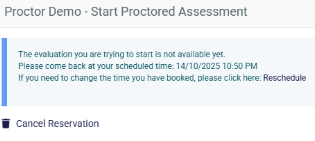
Alternatively, refer to the confirmation email you received from Testgrid when you made the booking to verify the scheduled date and time.
How do I pay for my Online proctored assessment?
In some assessment processes, the organisation to which you are applying may request payment for the assessments you are required to complete. If payment is necessary for your assessment, this requirement will be explicitly stated in your email instructions.
For instructions on how to make a payment, please refer to the article below:
Paying for an Online Proctored Assessment
If your email invitation does not clearly specify a payment requirement, no payment is expected.
How do I reschedule my proctored assessment?
In the event your need to change your scheduled assessment date and/or time due to unforeseen circumstances, you can do this via the Testgrid the platform.
Please note the following conditions for rescheduling your assessment:
- For assessments with a 72-hour booking window, any new booking must be scheduled a minimum of 72 hours in advance.
- For all other assessments, your current booking must commence at least 24 hours from now.
To reschedule your scheduled assessment date and/or time:
- Log in to your Testgrid account.
- Click the “Reschedule” link
- Select a new date and/or time for your assessment.
What if I’m late or miss my scheduled assessment time?
If you booked a proctored assessment and missed the time slot - or are more than 15 minutes late - please click on ‘contact us’ (in the top right header of this page) to email a member of our support team as soon as you can or use the Help button in the bottom-right corner to start a live chat.
What am I allowed to bring into a proctored assessment?
Please refer to the original invitation email sent by Testgrid, as this will contain instructions and details regarding any permitted resources.
Getting help
Need more help? click on ‘contact us’ button (in the top right header of this page) to email a member of our support team for assistance.